Best Downloader Codes for Firestick in 2026
Typing a long web address with a TV remote is nobody’s idea of fun. One wrong character and you land on the wrong page — or nowhere at all. That is exactly the problem Downloader codes solve: instead of typing a full download link, you type a short number into the Downloader app, and it takes you straight to the file you want to install.
This guide lists the best Downloader codes for Firestick in 2026, explains how to use them, and tells you which codes to avoid and what to check before installing anything. Codes change and expire, so always check the destination page before you press install.
What Is a Downloader Code?
Downloader is a free app by AFTVnews, available in the Amazon Appstore, that downloads files from the internet onto your Fire TV Stick. A Downloader code is a short numeric shortcut to a specific download page or file: type the code into Downloader’s URL box, press Go, and the app opens the linked page, where you can download the APK file and install it.
Before You Start: Set Up Downloader Properly
You only need to do this once. If you have already sideloaded apps on your Firestick, skip ahead to the codes list.
First, install Downloader from the Amazon Appstore: from the home screen, go to Find, then Search, type “Downloader”, and install the app with the orange icon.
Second, allow Downloader to install apps: go to Settings, then My Fire TV, then Developer Options, and turn on “Install unknown apps” for Downloader. On newer Fire TV devices, Developer Options is hidden — open Settings, then My Fire TV, then About, and click your device’s name seven times until you see a message saying you are now a developer.
Amazon’s warning when you enable this setting is worth reading, not dismissing. You are telling the device to trust apps from outside Amazon’s store. That is fine for publishers you recognise — risky for random files from codes posted in video comments.
The Best Downloader Codes for Firestick at a Glance
These codes were listed by established Firestick guides in October 2026. Codes can stop working without notice if the publisher changes their download page, so if one fails, check the publisher’s own site instead of trusting a replacement code from a random comment.
| Code | What it installs | Why it is useful |
|---|---|---|
| 250931 | TROYPOINT Toolbox | Menu of vetted apps |
| 483927 | Kodi | Open-source media centre |
| 71893 | Stremio | Media centre app |
| 560439 | MX Player | Video player for streaming apps |
| 25628 | Mouse Toggle | Virtual mouse for remote navigation |
| 79040 | SmartTubeNext | Alternative YouTube client for TV |
| 272483 | TiviMate | Live TV player (needs own playlist) |
| 6468112 | IPTV Smarters Pro | Live TV player (needs own service) |
1. TROYPOINT Toolbox — Code 250931
If you only memorise one code from this list, make it 250931. It opens the TROYPOINT Toolbox, a single menu of many vetted apps rather than one download. From the Toolbox you can install streaming, utility, and player apps without typing another code — the most practical starting point for a new Firestick.
2. Kodi — Code 483927
Kodi is an open-source media centre that has been around for years. It plays your own media files, organises them into a library with posters and descriptions, and works on Firestick, Android TV, phones, and computers. Kodi itself contains no content — what you watch depends on the add-ons you configure, and some third-party add-ons stream unlicensed material.
3. Stremio — Code 71893
Stremio is another media centre app: it gathers movies and TV shows into one catalogue, tracks what you are watching, and plays content through add-ons you choose. Like Kodi, Stremio on its own has no built-in library — what appears in it depends on the add-ons you install. Its clean interface makes it popular on TV devices, where Kodi’s menus can feel heavy. If Stremio shows no streams after installing, the usual cause is an add-on problem, not the app itself.
4. MX Player — Code 560439
MX Player is a video player, not a streaming service. Many third-party streaming apps use it as an external player because it handles more video formats and subtitle options than Fire TV’s built-in players. Installing MX Player alone will not give you movies to watch — it only plays files and streams that other apps hand to it. But if your streaming apps offer “Play with MX Player”, having it installed makes playback smoother.
5. Mouse Toggle — Code 25628
Some Android apps were designed for touchscreens, not TV remotes, and their buttons do not respond to the Firestick remote’s directional pad. Mouse Toggle adds a virtual mouse pointer you control with the remote, making those apps usable on a TV. It is a small utility, not a streaming app, but it solves a real frustration: an app that installs fine and then cannot be navigated. Turn it off when you are not using it, because the pointer can interfere with normal remote navigation.
6. SmartTubeNext — Code 79040
SmartTubeNext is an alternative YouTube client built for TV devices. It is popular on Firestick because the official YouTube app is not always comfortable on a remote, and SmartTubeNext is designed around TV navigation from the start. It is an unofficial client, so it can break when YouTube changes something on its side — if it stops working, check for an update before assuming your device is at fault.
7. TiviMate and IPTV Smarters Pro — Codes 272483 and 6468112
TiviMate (272483) and IPTV Smarters Pro (6468112) are live TV players. Neither app provides channels on its own — they are empty players that display a playlist or subscription you supply yourself. If you do not have a playlist or a legal IPTV subscription, installing either app gives you an empty interface.
If you do have a legitimate service, TiviMate is widely regarded as the cleaner TV experience, with a proper channel guide and catch-up support, while IPTV Smarters Pro is simpler to set up. Do not pay for a “lifetime channels” subscription advertised through a random code; those services are frequently shut down, and your payment goes with them.
Installing FreeCine on Firestick — No Official Code
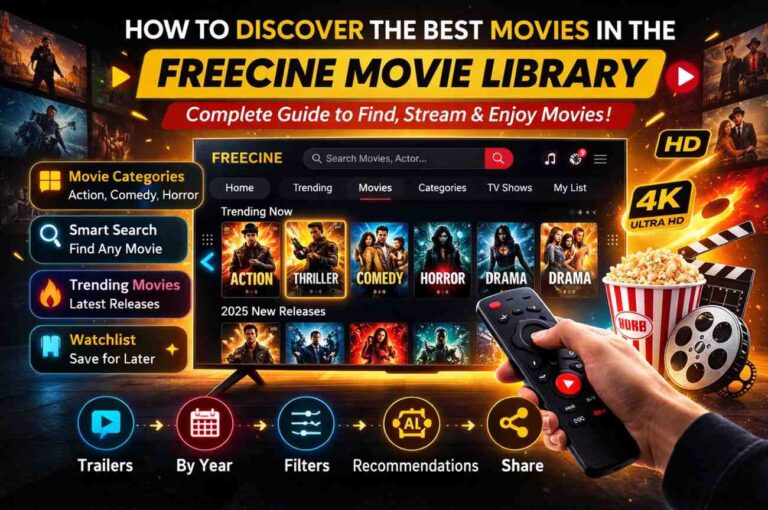
FreeCine does not publish an official numeric Downloader code, and this guide will not invent one. Codes for FreeCine circulating in comments and videos are unverified, and an unverified code can point anywhere — including to a modified file that is not the real app. The safe route is the one in our dedicated Fire TV guide: open Downloader, type the official freecinne.com address, and download from the site itself. FreeCine is an Android app sideloaded onto Fire TV, not an Amazon Appstore app, so Downloader plus the official site is the intended installation path.
Codes to Avoid in 2026
The most important warning on this page concerns Cinema HD. Codes such as 59745 and 28009 still circulate for Cinema HD, but the app’s developers have terminated support, and the app no longer works reliably. Worse, the name is now used by fake clone apps that have been flagged as a malware risk. Do not install anything calling itself Cinema HD from a code in 2026 — if you want a replacement, see our Cinema HD alternatives guide instead.
More generally, avoid codes found only in video comments, social media replies, or sites with no author and no update date. A code is only as trustworthy as the page it points to. If a code promises “all channels free forever” or a “premium unlocked” version of a paid app, treat it as a red flag, not a bargain.
How to Use a Downloader Code, Step by Step
Open Downloader on your Firestick. You will see a box at the top labelled “Enter a URL or Search Term”. Click it, type the numeric code, and press Go. Downloader will redirect to the linked page. Read the page before downloading: check that the app name matches what you expected, and that the site looks like the publisher’s own page or a known guide, not a lookalike domain.
When the download finishes, press Install, then Done. Downloader will offer to delete the APK file — accept, because installer files eat storage on a Firestick.
Pros and Cons of Using Downloader Codes
Pros:
- Much faster than typing full web addresses with a TV remote.
- One code (like the TROYPOINT Toolbox) can give you a menu of many apps.
- Works on Firestick, Fire TV Cube, and most Android TV devices.
- Lets you install useful utilities, such as Mouse Toggle, that are not in the Amazon Appstore.
Cons:
- Codes expire or change without notice, and dead codes waste your time.
- A code is not proof of safety — it only points to a page, and the page can change.
- Sideloaded apps do not update automatically through the Amazon Appstore.
- Installing apps from unknown sources carries real risk if you do not verify the destination.
Troubleshooting: When a Code Does Not Work
If a code shows an error or opens the wrong page, first check that you typed it correctly — a single wrong digit sends you somewhere else entirely. Next, check your internet connection and try again. If the code still fails, the publisher may have changed their download page, in which case the code is dead — look for the app on the publisher’s own website instead.
If the download works but the install button is greyed out, check that “Install unknown apps” is still enabled for Downloader, because Fire TV updates sometimes reset this permission. If the app installs but crashes immediately, the usual causes are low storage or a version that does not match your Fire TV’s processor — free up space by deleting unused apps and their APK files, then try the publisher’s latest version.
Frequently Asked Questions
Conclusion
Downloader codes turn a painful typing job into a few digits: start with 250931 for the TROYPOINT Toolbox, add Kodi (483927) or Stremio (71893) if you want a media centre, MX Player (560439) for better playback, and Mouse Toggle (25628) if an app ignores your remote. Skip Cinema HD codes entirely — that app is dead, and its name now belongs to clones. And remember the one rule that matters more than any code on this page: check where a code actually takes you before you install anything.