FreeCine for Fire TV Stick
Can You Use FreeCine on Fire TV Stick?
Yes. The Amazon Fire TV Stick runs on a version of Android, so the regular FreeCine for Fire TV Stick APK — latest version v3.0.4, about 37MB — installs and runs on it. There is no separate “TV version” of the app; you use the same APK and stream on the big screen instead of your phone.
The catch: FreeCine is not listed in the Amazon Appstore, so you can’t install it with one click. You need to “sideload” it — download the APK file and install it manually. The whole process takes about ten minutes.
What You Need Before Installing
- An Amazon Fire TV Stick (any generation) connected to your TV and Wi-Fi
- The free Downloader app from the Amazon Appstore
- At least 100MB of free storage on the Stick
- A stable internet connection
How to Install FreeCine on Fire TV Stick (Step by Step)
Step 1: Allow Apps from Unknown Sources
- From the Fire TV home screen, open Settings.
- Go to My Fire TV and open Developer Options.
- Turn Apps from Unknown Sources to ON.
If you don’t see Developer Options (it’s hidden on newer Fire TV software), go to Settings > My Fire TV > About, select your Fire TV Stick’s name, and press the select button about seven times until you see “You are now a developer.” Learn whether is FreeCine safe before you install it.
Step 2: Install the Downloader App
- From the home screen, open Search and type Downloader.
- Select the Downloader app (orange icon) from the results.
- Choose Download and wait for it to install.
Downloader is a free, widely used tool for downloading files on Fire TV devices.
Step 3: Download the FreeCine APK
- Open the Downloader app.
- In the URL box, type https://freecinne.com/ and press Go.
- On the site, tap the download button to get the latest FreeCine APK (v3.0.4).
- Wait for the download to finish completely.
Step 4: Install the App
- When the download completes, Fire TV will ask if you want to install the application.
- Select Install and wait a few seconds.
- Choose Open to launch FreeCine right away, or find it later under Your Apps & Channels.
Step 5: Start Streaming
Open FreeCine for Fire TV Stick, browse the library, and pick a movie or show. No account or sign-up is needed — just install and watch.
Tips for a Better Experience on a Big Screen
A few small adjustments make FreeCine much more comfortable on a television.
Use a Mouse for Easier Navigation
FreeCine is designed for touch screens, so the Fire TV remote can feel limited in some menus. Many users pair a Bluetooth mouse with their Stick to move around the app comfortably.
Pick the Right Video Quality
On a large TV, low resolutions look noticeably worse. If your internet is fast, choose HD or higher in the player settings. On slower connections, let the app adjust quality automatically to avoid buffering. If playback still fails, see our fixes for FreeCine not working.
Keep the App Updated Manually
FreeCine does not update itself. When a new version is released, repeat the download steps above to stay on the latest version.
Clear the Cache If It Slows Down
If the app starts lagging, go to Settings > Applications > Manage Installed Applications > FreeCine and clear the cache. This fixes most slowdowns without deleting anything important.
Frequently Asked Questions
Conclusion
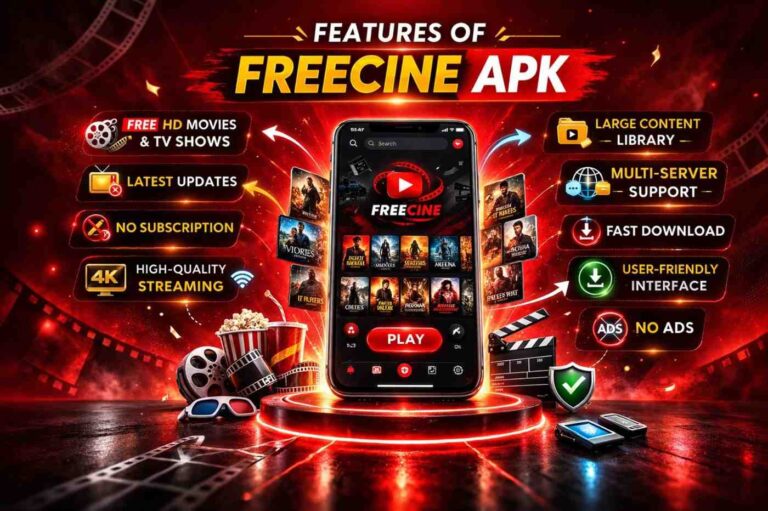
Installing FreeCine on a Fire TV Stick takes just a few steps: enable unknown sources, grab the Downloader app, and sideload the APK from the Freecine homepage. Once it’s on your TV, you get the full movie and TV library on the big screen, free. For more on what the app offers, see the top features of Freecine, or install it on other devices with our Freecine for PC and Freecine for iOS guides. Enjoy FreeCine for Fire TV Stick.